Simple image cropping code (code included)
 masa-san
2022-09-09
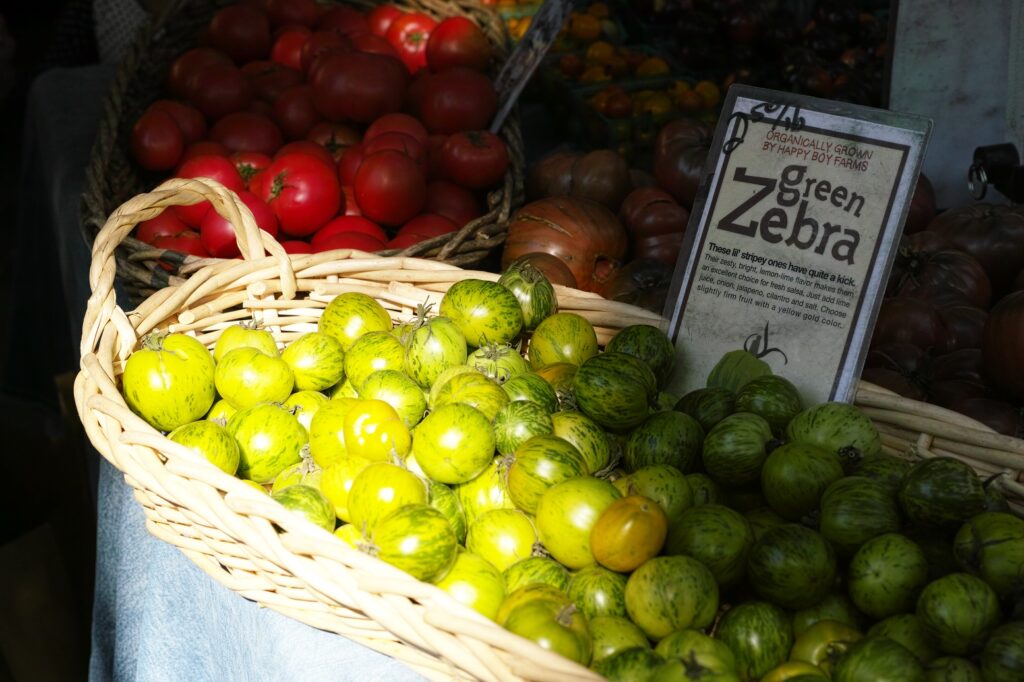
When I started building a website, the first thing I had to do was to crop photo images many times. From a 6000 x 4000 pixel photo, I had to cut out a long rectangle image in 1900 x 600 pixels for example. I tried to do this with MS Windows default paint software first, but soon found it is very time-consuming to crop to an exact size (or a multiple of that size) repeatedly.
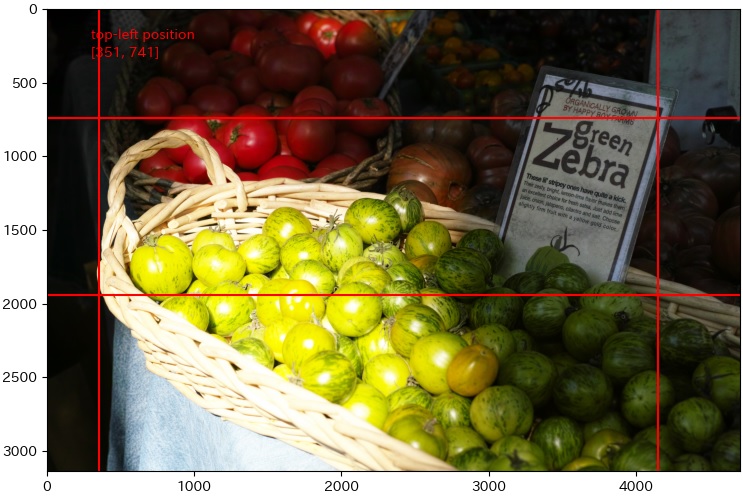
So I wrote the short Python code. I knew that the interactive mode of Matplotlib can do it. The image below is an example.


Code
# CROP PHOTO IMAGES by masa-san

# import libraries
from matplotlib import pyplot as plt
from PIL import Image
import re

# load an image
image = Image.open('file_name.tif')     # assumed photo data are placed in the same folder with this notebook

# see the photo
plt.figure(figsize = (12, 9))
plt.imshow(image)
plt.show()

# determine the size to crop
x_width = input("x width = ")   # example 1200
y_width = input("y width = ")   # example 3800

# check the size
x_width = int(x_width)
y_width = int(y_width)
print("x width = ", x_width, "    y width = ",  y_width)

# crop an image manually
import matplotlib.cm as cm
%matplotlib notebook

plt.figure(figsize = (9, 6))
plt.imshow(image)
x = 400
y = 400
xy = [x, y]

comment = 'top-left position'
comm = plt.text(300, 200, comment, color = 'r')
xy_init = plt.text(300, 320, xy, color = 'r')
h_line_1 = plt.axhline(y = y, color = 'r')
v_line_1 = plt.axvline(x = x, color = 'r')
h_line_2 = plt.axhline(y = y + x_width, color = 'r')
v_line_2 = plt.axvline(x = x + y_width, color = 'r')

def onclick(event):
    h_line_1.set_ydata(event.ydata)
    v_line_1.set_xdata(event.xdata)
    h_line_2.set_ydata(event.ydata + x_width)
    v_line_2.set_xdata(event.xdata + y_width)

    xy = [event.xdata, event.ydata]
    xy_disp = [int(event.xdata), int(event.ydata)]
    xy_init.set_text(xy_disp)
    xy_init.set_position(550, 350)

plt.connect('button_press_event', onclick)

# fix the upper left position
print(xy_init)
position_text = xy_init.get_text()
position_xy   = re.findall(r'\d+', position_text)
position_x = int(position_xy[0])
position_y = int(position_xy[1])
print(position_x, position_y)

# crop and save the image
top_left_x = position_x
top_left_y = position_y
bottom_right_x = position_x + y_width
bottom_right_y = position_y + x_width

print(top_left_x, top_left_y, bottom_right_x, bottom_right_y)

cropped_image = image.crop((top_left_x, top_left_y, bottom_right_x, bottom_right_y))
cropped_image.save('cropped_image.jpg')

# check the size of the cropped image
%matplotlib inline
plt.figure(figsize = (12, 8))
plt.imshow(cropped_image)
plt.show()
The code is downloadable from the link below. This operation is another exercise for me. Even if you like it, use at your own risk.